Content Library / AssetsManaging assets
Upload and organise photos
Build an image library so proposals always have the right pictures.
Quest Team3 min readUpdated 23 Jul 2026
Upload photos on library items and company/quote media so proposals look polished.
- 1
Upload on a library item
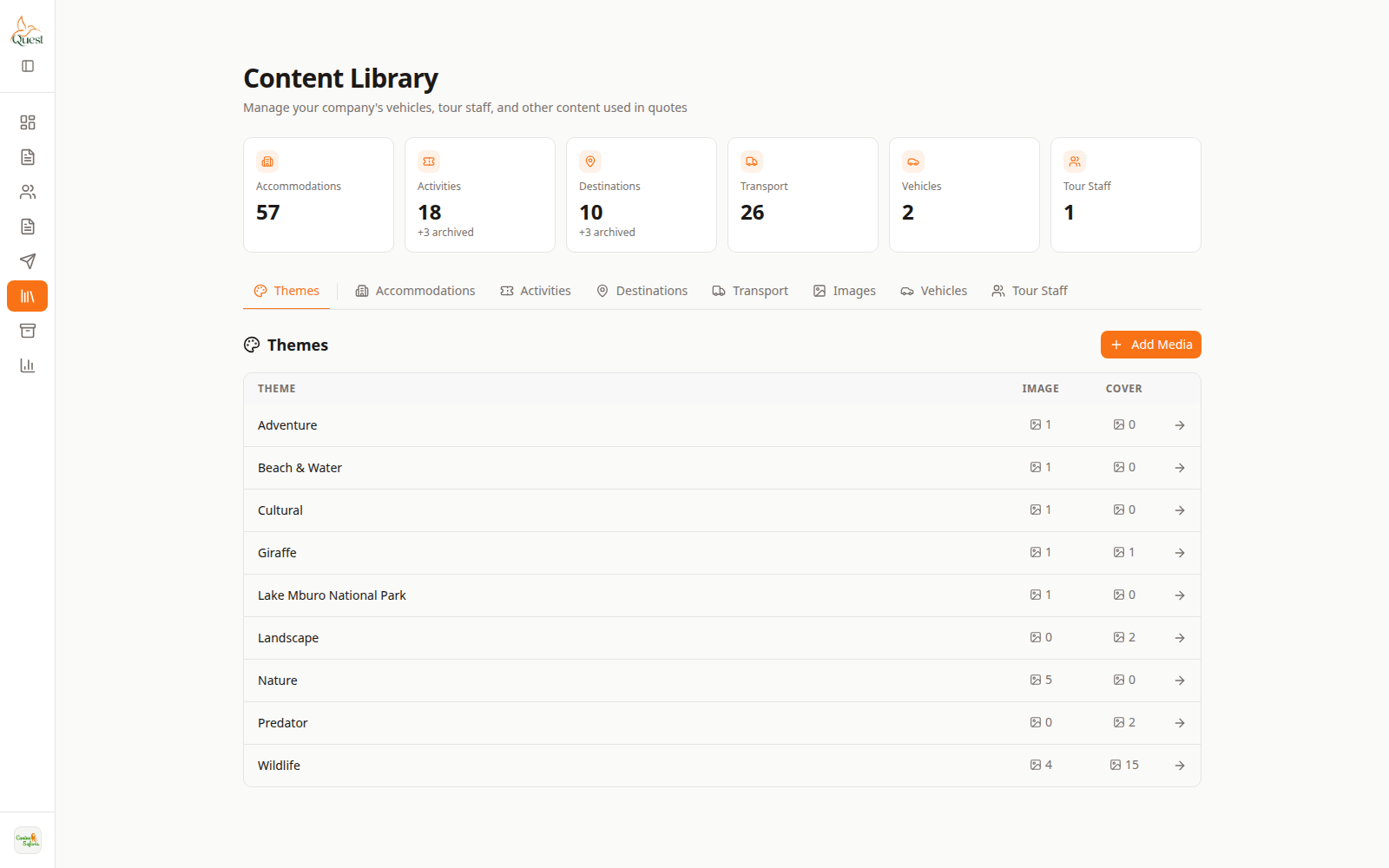
Library
Media on catalog items.
What the numbers mean
- 1
Library item
Open to manage its photos.
Content Library → open item → photos/images → upload → save.
- 1
- 2
See them on Preview
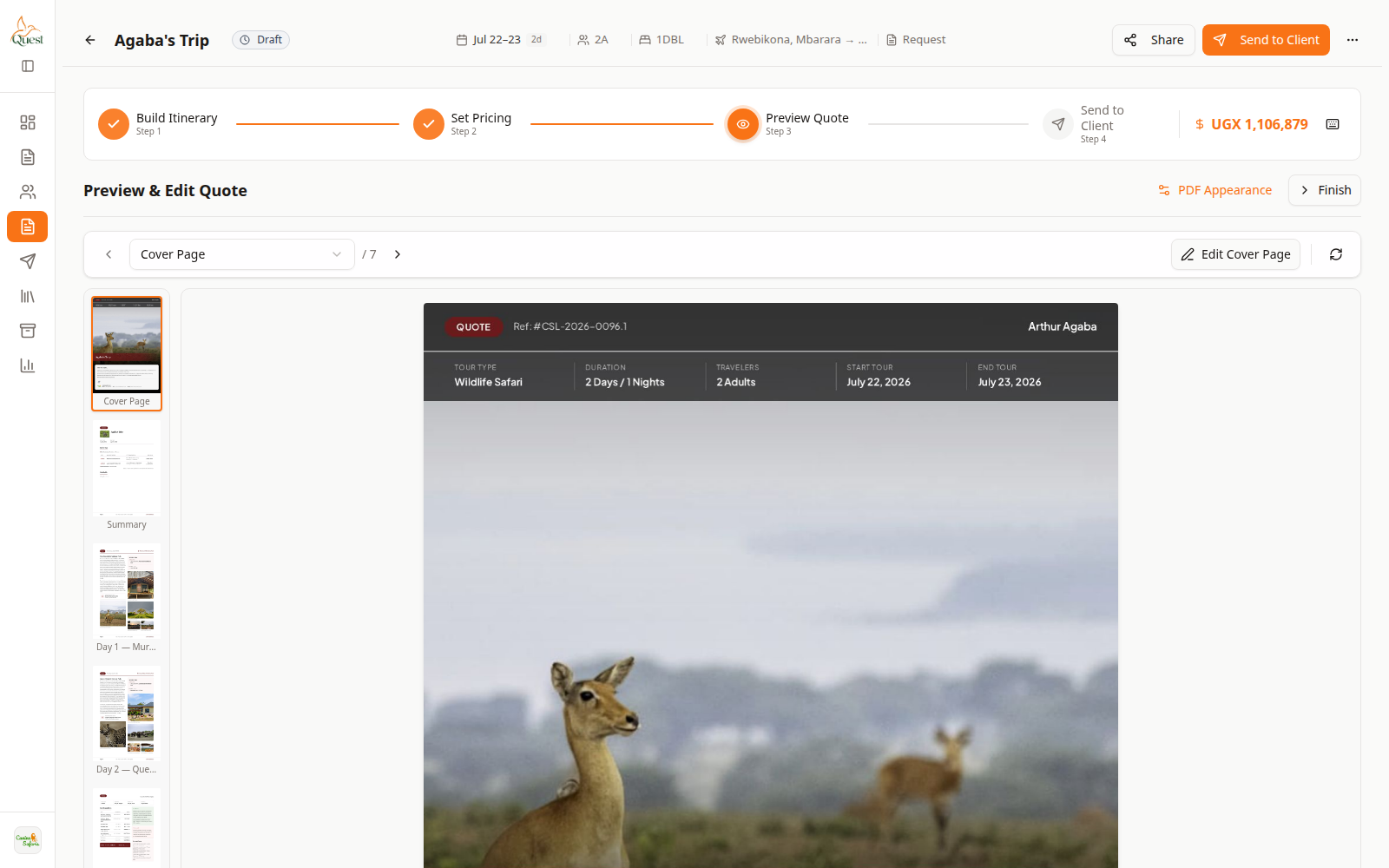
Preview
Images on the proposal.
What the numbers mean
- 1
Preview canvas
Confirm photos render on client pages.
Preview a quote that uses the item to confirm images appear.
- 1
Was this helpful?